Macs have a reputation for being fast and staying fast — and for the most part, that's earned. But give any MacBook enough time, a full storage drive, and a pile of background apps, and it will slow down just like anything else.
The good news is that most slow MacBooks don't need replacing. They need clearing out. This guide covers every fix, from the two-minute wins to the deeper changes that make a real difference — all without needing any technical knowledge.
🐌 Why Does a MacBook Slow Down?
macOS is well-optimised, especially on Apple Silicon Macs (M1, M2, M3, M4). But even the best hardware gets bogged down by the same handful of issues. Understanding them makes the fixes obvious.
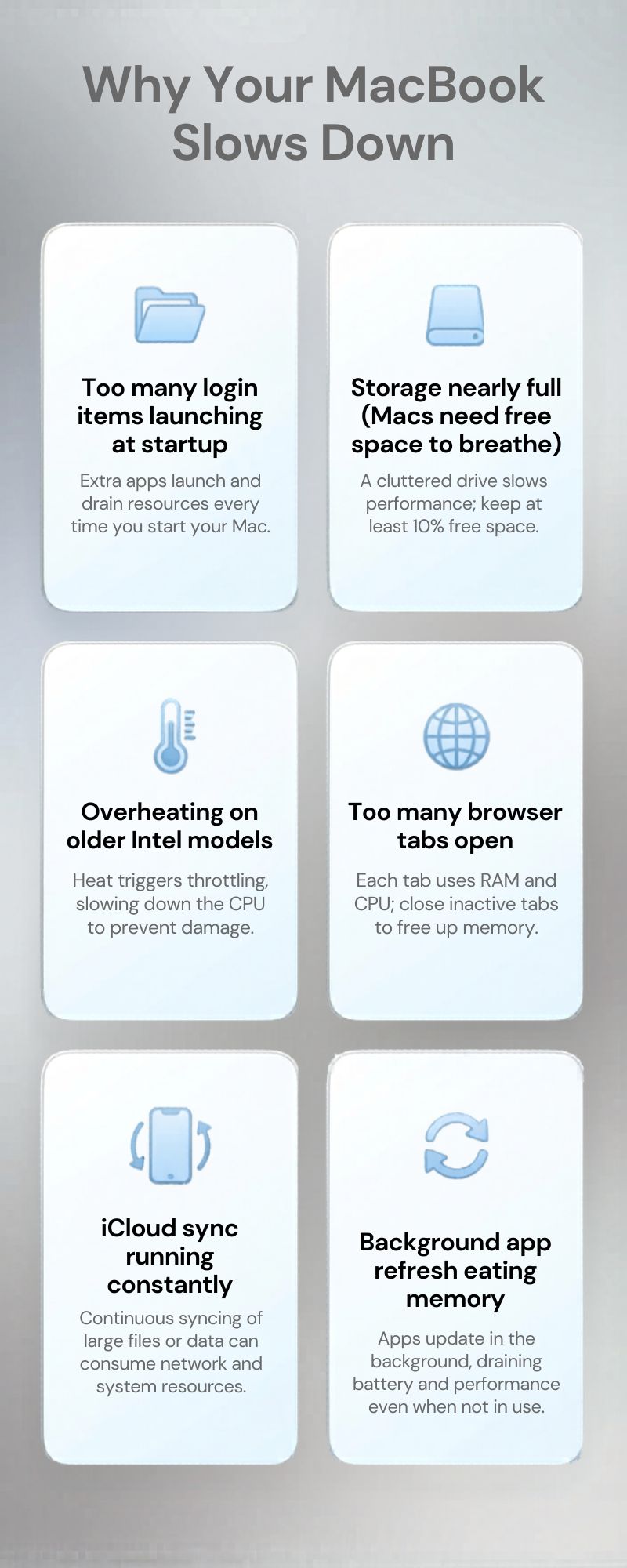
- Login items launching at startup — apps that silently open when you log in and run in the background all day
- Storage nearly full — macOS needs free space to operate efficiently. When you're over 85% full, slowdowns are noticeable and consistent.
- Too many browser tabs — especially Chrome. Each tab runs as a separate process in memory. 30 tabs can use more RAM than everything else combined.
- Memory pressure — when your Mac runs out of fast RAM and starts using slower storage as overflow (swap), things grind down
- iCloud or Dropbox syncing — continuous background sync consumes both CPU and disk bandwidth
- Overheating (Intel Macs) — dust in the vents causes the processor to throttle itself; less common on Apple Silicon but still applies to 2015–2020 models
⚡ Do These First — Quick Wins Under 5 Minutes
Restart Your Mac
Most Mac users keep their machine in sleep mode indefinitely. A proper restart clears RAM, closes background processes, and applies any pending updates. Apple menu → Restart. Make it a habit every few days.
Check Your Storage
Go to Apple menu → About This Mac → Storage. If the bar is over 80% full, clearing space is your first and most impactful fix — covered in detail below.
Install macOS Updates
System Settings → General → Software Update. Pending updates can cause background slowdowns as your Mac keeps retrying downloads. Get them installed, restart, and see if there's an improvement.
🍎 Step-by-Step: How to Speed Up Your MacBook
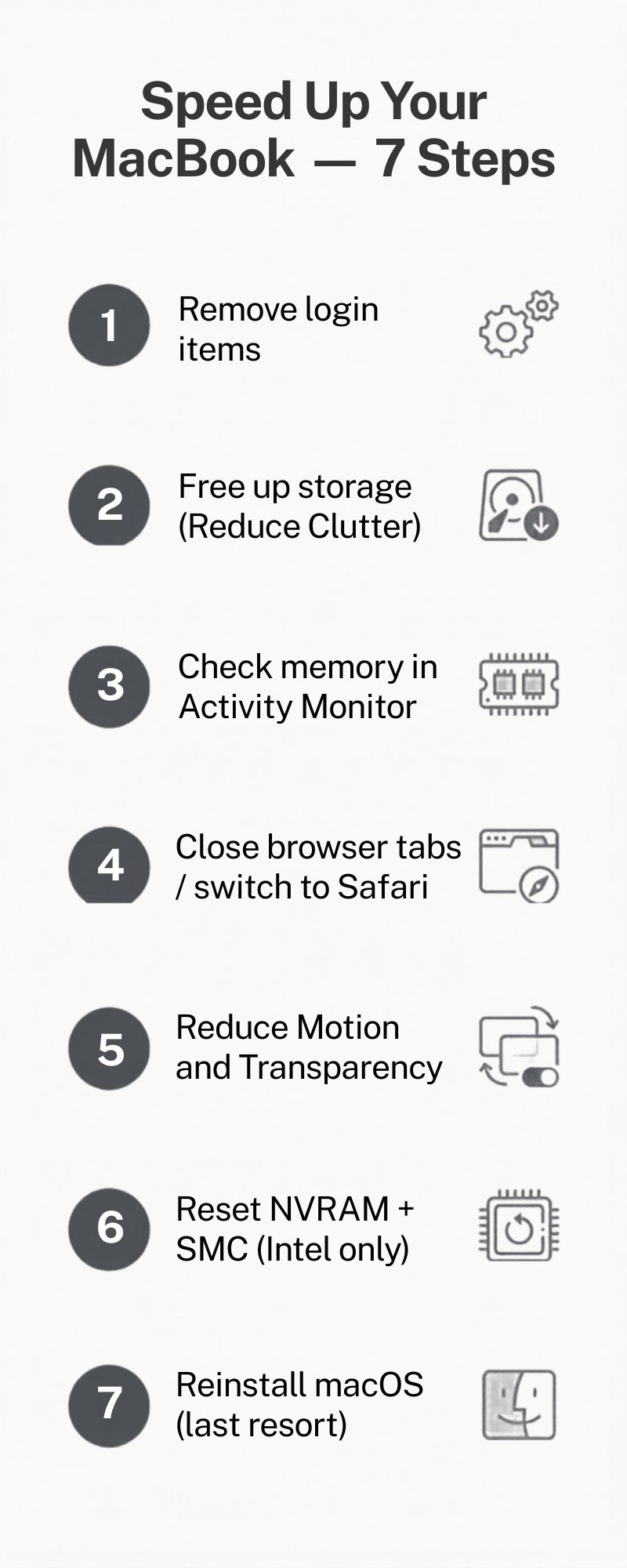
Step 1: Remove Login Items and Background Apps
macOS calls them Login Items — apps that launch automatically when you log in and sit in the background consuming memory. This is the most common cause of slow Mac startups and sluggish performance throughout the day.
How to do it:
- 1. Apple menu → System Settings → General → Login Items
- 2. Under "Open at Login" — remove anything you don't need immediately at startup
- 3. Under "Allow in the Background" — toggle off apps that don't need to run constantly
Common ones to remove: Spotify, Zoom, Microsoft Teams (unless you use it first thing every day), Adobe Creative Cloud, any cloud storage apps.
Step 2: Free Up Storage Space
macOS has a built-in storage management tool that's often overlooked. It shows exactly where your storage is going and lets you clear it out intelligently.
How to do it:
- 1. Apple menu → About This Mac → Storage → Manage
- 2. Click Reduce Clutter first — it shows your largest files and old downloads
- 3. Delete anything you no longer need: old .dmg files from app installs are often hiding here taking up space
- 4. Empty the Bin
- 5. Enable Optimise Storage if you use iCloud — it offloads files you rarely access automatically
Aim to keep at least 15–20% of your storage free for macOS to work comfortably.
Step 3: Check What's Using Memory
Activity Monitor is the Mac equivalent of Task Manager — it shows exactly what's eating your RAM and CPU in real time. The Memory Pressure graph is the most useful thing to look at.
How to do it:
- 1. Spotlight (Cmd + Space) → type "Activity Monitor" → open it
- 2. Click the Memory tab
- 3. Look at the Memory Pressure graph at the bottom
- 4. Green = fine. Yellow = getting tight. Red = your Mac genuinely needs fewer apps open or more RAM.
- 5. Sort by Memory to see the biggest consumers — close anything you're not using by selecting it and clicking the X button
Step 4: Close Tabs and Consider Switching to Safari
This sounds trivial but it's a genuine fix. Chrome runs each tab as a separate process with its own memory allocation. On a MacBook with 8GB RAM, 30+ Chrome tabs is a significant load. Close the ones you're not using.
If you live in a browser, it's worth trying Safari. Apple has optimised it specifically for macOS and Apple Silicon — it consistently uses 50–70% less memory than Chrome for the same number of tabs, and significantly extends battery life. If you need Chrome occasionally, keep both installed. Use Safari as your daily driver.
Alternatively, install OneTab (free extension for Chrome/Firefox) — it suspends all your tabs into a list and frees their memory instantly, restoring them one at a time when you need them.
Step 5: Reduce Motion and Transparency Effects
macOS has translucent menus, smooth dock animations, and parallax effects that look beautiful but consume GPU resources. On older Macs especially, turning these off makes the UI feel measurably snappier.
How to do it:
- 1. System Settings → Accessibility → Display
- 2. Toggle on "Reduce motion"
- 3. Toggle on "Reduce transparency"
The interface looks slightly more flat afterwards, but on older hardware the performance gain is real.
Step 6: Reset NVRAM and SMC — Intel Macs Only
If you have an Intel-based Mac (2015–2020), resetting the NVRAM and SMC can fix sluggish performance caused by corrupted low-level settings. It's safe, takes two minutes, and doesn't affect your files.
Apple Silicon Macs (M1, M2, M3, M4) don't have an SMC. Skip this step if your Mac has an M-series chip.
Reset NVRAM (Intel Macs):
- 1. Shut down your Mac completely
- 2. Turn it on and immediately hold Option + Command + P + R
- 3. Hold for about 20 seconds — until the Mac restarts twice
- 4. Release the keys and let it boot normally
Reset SMC (MacBook with T2 chip, 2018–2020):
- 1. Shut down your Mac
- 2. Hold Shift + Control + Option (left side) + Power button for 10 seconds
- 3. Release all keys, then press Power to turn on
Step 7: Reinstall macOS — Last Resort
If everything else has been tried and the Mac is still slow, a clean reinstall of macOS removes corrupted files and years of system clutter. Your personal files can be kept intact — you're reinstalling the OS, not wiping the drive.
How to do it:
- 1. Back up to Time Machine or an external drive first
- 2. Restart and hold Command + R (Intel) or hold the power button until you see Options (Apple Silicon)
- 3. Select Reinstall macOS
- 4. Follow the prompts — your files are kept by default
- 5. Takes 30–60 minutes depending on your internet speed
🔧 Hardware: What Can You Upgrade on a Mac?
This is where Macs differ significantly from Windows laptops. Since 2016, Apple has largely soldered storage and RAM directly to the motherboard — meaning most MacBooks cannot have their RAM or SSD upgraded after purchase.
What You Can Do
- ✅ Clean the vents — compressed air in the vents reduces thermal throttling on Intel Macs
- ✅ Replace the battery — Apple offers battery replacements from £129, and a degraded battery can cause significant performance issues
- ✅ Use external storage — offload files to an external SSD to free up internal space
- ✅ Older Mac Pro / Mac mini — some desktop/modular models still have user-accessible RAM slots
What You Can't Do
- ❌ Upgrade RAM on any MacBook Air or Pro from 2016 onwards
- ❌ Swap the SSD on most MacBooks from 2016 onwards (a few 2016–2019 models are exceptions)
- ❌ Add a discrete GPU
This is why choosing the right RAM configuration at purchase matters so much with Macs — you're usually locked in.
Is It Time to Replace?
If your Mac is 6+ years old, has a degraded battery, and the software fixes above haven't helped, it may genuinely be time to upgrade. The good news: a new MacBook Air M4 starts from £1,099, and the performance jump from a 2018–2019 Intel MacBook is dramatic — typically 3–4x faster in everyday tasks.
❓ Common Questions
How much RAM does a Mac actually need?
Apple Silicon Macs handle RAM more efficiently than Intel Macs, so 8GB on an M-series MacBook often matches 16GB on a Windows machine in practical everyday use. For most people — browsing, documents, video calls — 8GB is fine. If you edit video, use Xcode, or keep many apps open simultaneously, 16GB is the right call.
Why is my MacBook fan so loud?
Loud fans usually mean the processor is working hard — either because something is genuinely demanding your attention, or because something is misbehaving in the background. Open Activity Monitor, click the CPU tab, and sort by CPU% to find the culprit. If it's a browser tab, close it. If it's a runaway background process, force quit it. On Intel Macs, dust in the vents can also cause the fan to run more than necessary — a blast of compressed air in the vents often helps.
Is CleanMyMac worth paying for?
For most people, the built-in macOS tools cover everything you need. CleanMyMac's app uninstaller (which removes leftover files more thoroughly than dragging to Bin) and duplicate file finder are genuinely useful features that macOS doesn't do natively. But the overall cleaning and optimisation features largely replicate what the built-in tools already do. It's not necessary.
My Mac is slow only on battery. Is that normal?
Somewhat. macOS automatically reduces performance slightly on battery to extend runtime — this is by design. But if it's severely slower on battery, it may indicate a degraded battery. Check in System Settings → Battery → Battery Health. If it shows "Service Recommended," a battery replacement (£129 from Apple) will often restore normal performance.
Will reinstalling macOS delete my files?
No — a standard Reinstall macOS from Recovery Mode reinstalls the OS without touching your files or apps. If you want a complete wipe, you'd need to erase the disk first and choose a fresh install. Always back up to Time Machine before either option, just in case.
✅ Your MacBook Speed-Up Checklist
Work through this in order. For most MacBooks, the first three steps make the biggest difference and are enough on their own.
- ☐ Restart your Mac (Apple menu → Restart)
- ☐ Check storage — under 80% full? (About This Mac → Storage)
- ☐ Install macOS updates (System Settings → Software Update)
- ☐ Remove login items (System Settings → General → Login Items)
- ☐ Free up storage (About This Mac → Storage → Manage → Reduce Clutter)
- ☐ Check memory pressure in Activity Monitor
- ☐ Close excess browser tabs or switch to Safari
- ☐ Enable Reduce Motion + Reduce Transparency (Accessibility → Display)
- ☐ Reset NVRAM + SMC (Intel Macs only)
- ☐ Check battery health (System Settings → Battery)
- ☐ Reinstall macOS as a last resort
Comments
Loading comments…